

Ingesting data from MongoDB to ClickHouse Cloud via ClickPipes is in public beta.
In the ClickHouse Cloud console and documentation, “table” and “collection” are used interchangeably for MongoDB.
Prerequisites
To get started, you first need to ensure that your MongoDB database is correctly configured for replication. The configuration steps depend on how you’re deploying MongoDB, so please follow the relevant guide below: Once your source MongoDB database is set up, you can continue creating your ClickPipe.Create your ClickPipe
Make sure you’re logged in to your ClickHouse Cloud account. If you don’t have an account yet, you can sign up here.- In the ClickHouse Cloud console, navigate to your ClickHouse Cloud Service.
- Select the
Data Sourcesbutton on the left-side menu and click on “Set up a ClickPipe”.
- Select the
MongoDB CDCtile.
Add your source MongoDB database connection
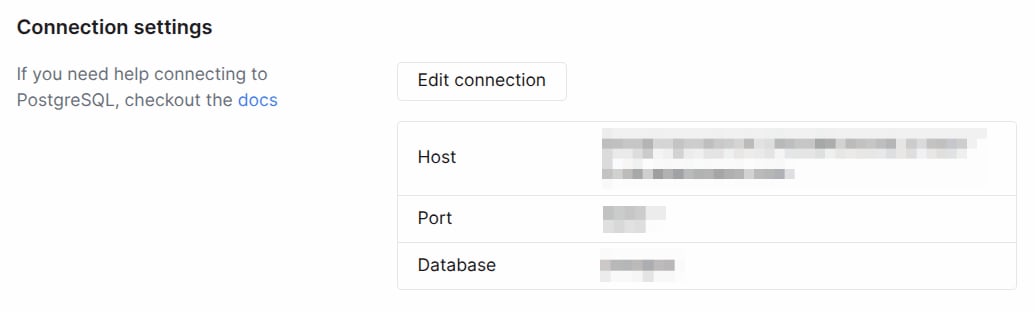
- Fill in the connection details for your source MongoDB database which you configured in the prerequisites step.
Before you start adding your connection details make sure that you have whitelisted ClickPipes IP addresses in your firewall rules. On the following page you can find a list of ClickPipes IP addresses.
For more information refer to the source MongoDB setup guides linked at the top of this page.
(Optional) Changing TLS settings
By default, your ClickPipe will be created with TLS enabled and certificate verification. These defaults can be modified upon ClickPipe creation: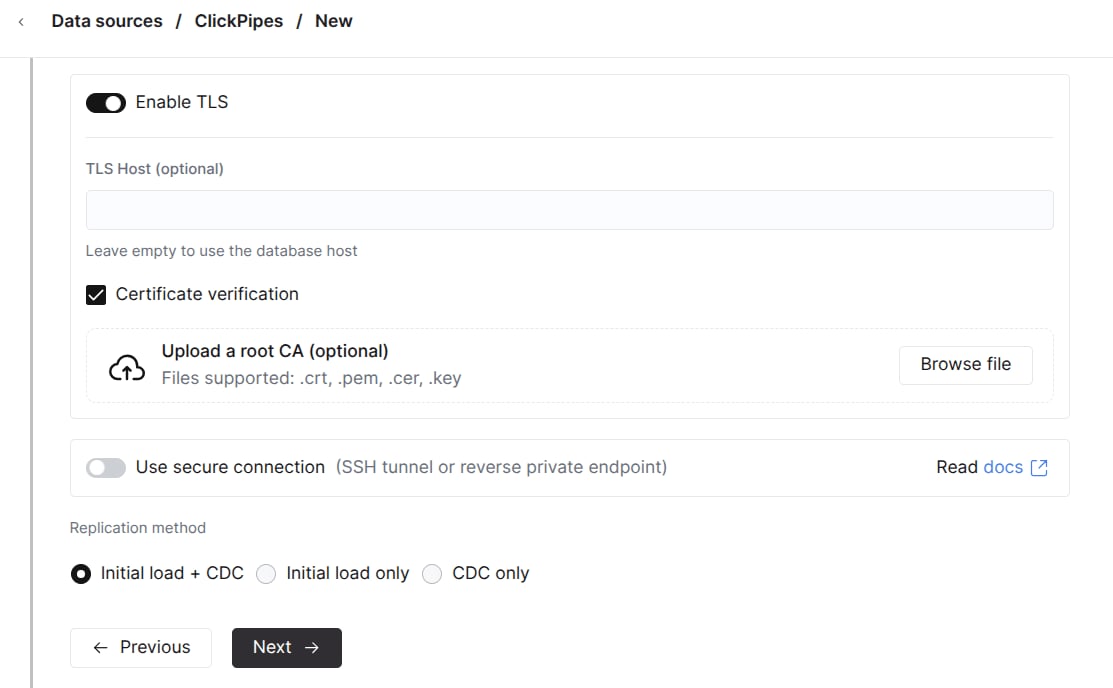
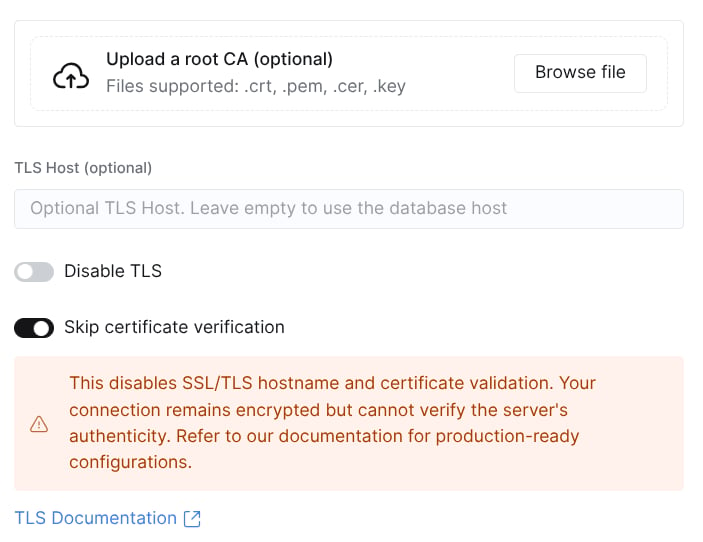
Disable TLStoggles TLS for the connection on or off. Turning TLS off means data is sent as plaintext over the network, potentially including secrets and sensitive data.Skip certificate verificationtoggles on or off the verification of the certificate presented by the source database. Take into consideration the security implications of skipping certificate verification.TLS Host(optional, defaults to the source Host) is the hostname the certificate’s CN must match when certificate verification is enabled.Upload CAcan be used to provide a CA used when certificate verification is enabled.
(Optional) Set up SSH Tunneling
You can specify SSH tunneling details if your source MongoDB database isn’t publicly accessible.- Enable the “Use SSH Tunnelling” toggle.
- Fill in the SSH connection details.
-
To use Key-based authentication, click on “Revoke and generate key pair” to generate a new key pair and copy the generated public key to your SSH server under
~/.ssh/authorized_keys. - Click on “Verify Connection” to verify the connection.
Make sure to whitelist ClickPipes IP addresses in your firewall rules for the SSH bastion host so that ClickPipes can establish the SSH tunnel.
Next.
Configure advanced settings
You can configure the advanced settings if needed. A brief description of each setting is provided below:- Sync interval: This is the interval at which ClickPipes will poll the source database for changes. This has an implication on the destination ClickHouse service, for cost-sensitive users we recommend to keep this at a higher value (over
3600). - Pull batch size: The number of rows to fetch in a single batch. This is a best effort setting and may not be respected in all cases.
- Snapshot number of tables in parallel: This is the number of tables that will be fetched in parallel during the initial snapshot. This is useful when you have a large number of tables and you want to control the number of tables fetched in parallel.
Configure the tables
- Here you can select the destination database for your ClickPipe. You can either select an existing database or create a new one.
- You can select the tables you want to replicate from the source MongoDB database. While selecting the tables, you can also choose to rename the tables in the destination ClickHouse database.
Review permissions and start the ClickPipe
- Select the “Full access” role from the permissions dropdown and click “Complete Setup”.
What’s next?
Once you’ve set up your ClickPipe to replicate data from MongoDB to ClickHouse Cloud, you can focus on how to query and model your data for optimal performance.Caveats
Here are a few caveats to note when using this connector:- We require MongoDB version 5.1.0+.
- We use MongoDB’s native Change Streams API for CDC, which relies on the MongoDB oplog to capture real-time changes.
- Documents from MongoDB are replicated into ClickHouse as JSON type by default. This allows for flexible schema management and makes it possible to use the rich set of JSON operators in ClickHouse for querying and analytics. You can learn more about querying JSON data here.